

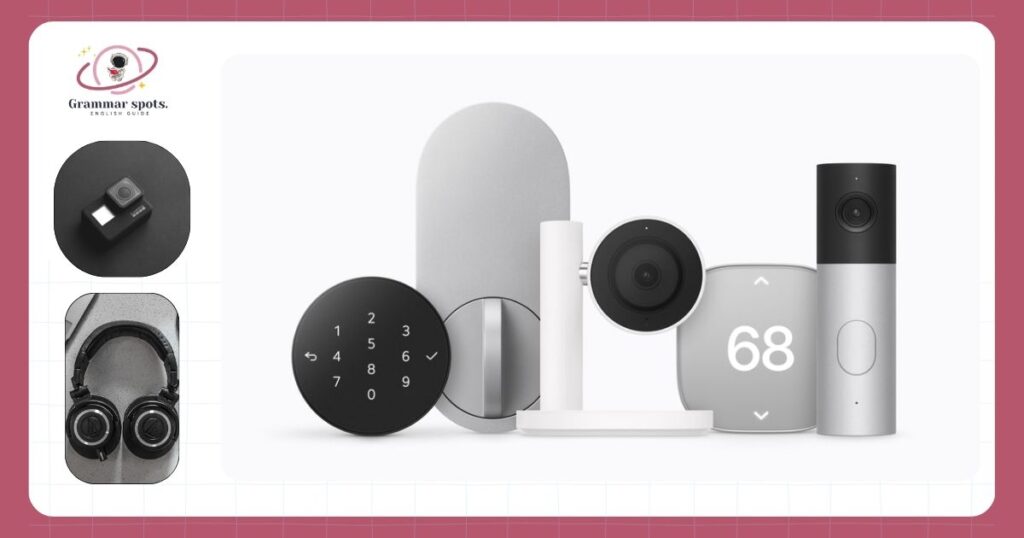
Apple Home works with smart lights, plugs, switches, locks, thermostats, cameras, doorbells, sensors, blinds, garage door openers, fans, air purifiers, robot vacuums and more. The catch is simple but easy to miss. Each product has to support Apple Home (also called HomeKit) or Matter, and that support can change from one model to the next, even inside the same brand.
So the better question is not “Which brands work?” It is “Does this exact model work, and will the features I care about show up in the Home app?” This guide helps you answer both before you spend money.
Apple Home, HomeKit and Matter: three names, one goal
These three words cause most of the confusion, so it helps to sort them out first.
Apple Home is the Home app plus the system behind it. It runs on iPhone, iPad, Mac, Apple Watch, Apple TV and HomePod. When people say “Apple Home devices,” they can mean two things: the Apple-made gear that runs your home (HomePod, Apple TV, and the new HomeView), or the products from other companies that you control in the app. Apple calls the second group accessories.
HomeKit is the older name for the same platform. Developers still use it, and many boxes on store shelves still say it. A “HomeKit compatible” plug and a plug that “works with Apple Home” are the same thing.
Matter is a shared smart-home language. It is run by a group called the Connectivity Standards Alliance, and Apple, Google, Amazon and Samsung all support it. Apple added Matter to the Home app with iOS 16.1. The big plus is choice: one Matter plug can work with Apple Home and with Alexa or Google at the same time.
Matter does have limits. Apple supports many Matter device types, but not every single one. And even when a Matter device adds just fine, some of its extra settings may only live in the maker’s own app. Think of Matter as a promise that the basics will work, not every bonus feature.
Device types that work with Apple Home, and the catch for each
Apple keeps its own list of accessory types for the Home app. The table below follows those types. The second column is the part most lists skip: the one thing that most often trips people up for that kind of device.
| Device type | What to check first |
|---|---|
| Smart bulbs and light strips | Zigbee bulbs, like many Philips Hue lights, need their brand’s bridge to show up in Home. |
| Plugs and outlets | Many only connect to 2.4 GHz Wi-Fi, not 5 GHz. |
| Light switches and dimmers | Most need a neutral wire in the wall box. Look before you buy. |
| Smart locks | Tap-to-unlock with your iPhone (Home Key) works only on locks that list it. |
| Thermostats | Your heating and cooling wires must match. Many need a C-wire for steady power. |
| Security cameras | Look for “HomeKit Secure Video” by name if you want recordings in the Home app. |
| Video doorbells | Fewer models work with Apple Home than for other platforms. Check the exact model. |
| Sensors (motion, door, leak, temperature) | Many run on Thread, which needs a Thread border router. |
| Blinds and shades | Some motors need the maker’s hub to join Home. |
| Garage door openers | Some need an add-on module, and not every opener brand is supported. |
| Fans, air purifiers, heaters, AC units, humidifiers | Basic on/off and speed often work. Special modes may stay in the maker’s app. |
| Robot vacuums | Support came through Matter. Expect start, stop and simple modes, not room maps. |
| Security systems, sprinklers, water valves | Support varies a lot by model. Check the maker’s page. |
| Bridges and Wi-Fi routers | A bridge brings non-native devices in. A HomeKit router can limit what each device reaches online. |
AirPlay speakers and TVs also show up in the Home app, but that is a separate feature for playing audio and video. It is not covered here.
How to check one exact model before you buy
A brand name tells you very little. One company may sell a camera that works with Apple Home and a doorbell that does not. A newer “Gen 2” version may add Matter while the older one never got it. These three checks take a few minutes and save a return trip.
- Read the box or listing. Look for the “Works with Apple Home” badge, the older “Works with Apple HomeKit” badge, or the Matter logo. Any one of them is a good sign. Be careful with loose phrases like “Apple compatible” or “works with Siri.” Those can mean voice shortcuts or an iPhone app, not the Home app.
- Check Apple’s accessory page. Apple’s page links to many supported brands by device type. It is a helpful starting point, though it is not a full list of every model.
- Match the model number on the maker’s site. Find the product’s support page and look for the exact model number. Check whether it needs a hub or bridge, whether a firmware update is needed first, and whether the US version matches the one you saw online.
Two big names come up often. Ring doorbells and cameras do not offer Apple Home support. Some Google Nest thermostats added Matter, which lets them join the Home app, but Nest cameras and doorbells do not work there. In both cases, check the brand’s own support page for your model, since this can change.
Extra hardware you might need: hub, bridge or Thread border router
These three items have different jobs. People mix them up all the time, and some devices do two of the jobs at once.
| Item | Its job | When you need it |
|---|---|---|
| Home hub | Keeps your home running when you are out | For remote control, automations, sharing and camera recording |
| Bridge | Connects devices that can’t talk to Apple Home on their own | Only when the product’s maker says one is required |
| Thread border router | Links Thread devices to your home network | When you own Thread sensors, locks or Matter-over-Thread gear |
Home hubs: HomePod, Apple TV and HomeView
A home hub is an Apple device that stays at home and stays on. It lets you control things when you are away, run automations like “turn on the porch light at sunset,” share access with family, and record camera video. HomePod, HomePod mini and Apple TV can all do this job.
An iPad no longer counts. Apple ended support for the old Home setup on February 10, 2026. The newer setup only accepts an Apple TV or HomePod as a hub, so iPad owners who relied on it need one of those now.
Can you skip a hub? Partly. An iPhone on iOS 18 or later can add and control Matter devices without one. You will lose remote control and most automations, though, and Apple itself recommends a hub.
Apple also announced HomeView on October 13, 2026. It is a $299 smart display with a 7-inch screen that sits on a counter or mounts on a wall. Apple describes it as a home hub, a Matter controller and a Thread border router. It is set to ship in the US on November 13, 2026. A new HomePod mini and a new Apple TV 4K were announced the same day.
Bridges for Zigbee and Z-Wave devices
Zigbee and Z-Wave are older smart-home radio types. Apple Home can’t talk to them directly. A bridge fixes that by passing their signals into the Home app. The Philips Hue Bridge is a common example for Hue lights, and some Aqara hubs do the same for Aqara sensors.
One detail matters here. Only the devices the bridge itself supports will appear in Home. A random Zigbee sensor from another brand may pair with the bridge but still never show up in your app.
Thread border routers
Thread is a low-power network that lets small devices pass signals to each other, like a relay team. It is great for battery sensors and locks. To reach your Wi-Fi network, Thread devices need a border router.
Many Apple hubs already are one: HomePod mini, HomePod (2nd generation), and Apple TV 4K (2nd generation, plus the 3rd-generation model with Ethernet). The Wi-Fi-only 3rd-generation Apple TV 4K does not have Thread, which surprises a lot of people. If you have Thread devices and none of these, you will need a Thread-enabled hub or a third-party border router for automations and remote control to work well.
“Compatible” does not always mean every feature works
A device can add to the Home app and still leave some of its best features behind in the maker’s app. This gap is widest for three device types.
Cameras and video doorbells
Most Apple Home cameras give you a live view in the Home app. Saved recordings are a different story. For that, the camera must support HomeKit Secure Video, and not all of them do.
With HomeKit Secure Video, your home hub checks the video for people, animals, cars and packages. Clips are then stored in iCloud in encrypted form, and they do not count against your iCloud storage. You do need a paid iCloud+ plan, and the plan decides how many cameras you can add:
| iCloud+ plan | Cameras allowed |
|---|---|
| 50 GB | 1 |
| 200 GB | Up to 5 |
| 2 TB or more | No limit |
Many camera brands also sell their own cloud plans. If you buy a camera without HomeKit Secure Video, you may end up paying for that plan just to save clips.
Thermostats
Apple does not make a thermostat under its own name. The new thermostats in the Apple Home Collection (covered below) are made by LG and Schneider Electric. Other brands’ thermostats can work too, through HomeKit or Matter.
With any of them, the Home app usually handles the basics: the temperature, the mode, and simple automations. Weekly schedules, eco settings and fan timers often stay in the maker’s app. Check your wiring before anything else. A thermostat that cannot get power from your system will not help, no matter which badge it has.
Smart locks
Plenty of locks can lock and unlock from the Home app. Home Key is the extra step. It lets you tap your iPhone or Apple Watch on the lock, like a transit card. Only locks that clearly list Home Key support offer it. Sharing keys with family and unlocking from far away both run through your home hub. Some locks also keep PIN code setup in their own app.
What is the Apple Home Collection?
The Apple Home Collection is a set of cameras, a lock, thermostats and sensors that Apple announced on October 13, 2026. Apple designed them together with LG Electronics and Schneider Electric, and those two companies make the hardware. So if you have seen people search for an “Apple thermostat” or an “Apple Home camera,” these are most likely the products they mean.
Here are the US prices as reported at launch:
| Product | Price |
|---|---|
| LG Video Doorbell | $249.95 |
| LG Indoor Cam | $199.95 |
| LG Outdoor Cam | $299.95 |
| LG Floodlight Cam | $399.95 |
| LG Smart Deadbolt Lock | $349.95 |
| LG Thermostat | $199.95 |
| Schneider Electric Thermostat | $199.95 |
| Temperature and humidity sensor | $39.95 |
What makes them different is setup. Everything happens inside the Home app with one tap on your iPhone, with no extra brand app or account. Reports say every product uses Thread, and the lock also supports Matter. Camera history is saved through iCloud+ instead of a separate camera plan.
The collection goes on sale starting in December 2026. Apple says some items will not arrive until early 2027, but it has not said which ones. You do not need these products to use Apple Home. They are simply the most tightly built-in choice, and the many third-party options still work the same way they always have.
A quick checklist before you click “buy”
Run through these questions with the product page open:
- Does the model number on the page match the one on the maker’s support site?
- Is this the US version?
- Do I already own a home hub, or will I need one?
- Does it need a bridge or a Thread border router that I don’t have yet?
- Will the one feature I care most about (recordings, Home Key, schedules) work in the Home app?
- Does it need 2.4 GHz Wi-Fi, and does my router offer it?
- Are there monthly fees, from iCloud+ or the maker?
If a device won’t add, or features are missing
Start with the simple fixes and work down the list.
- Use an iPhone or iPad. You can’t add accessories from a Mac.
- Update everything. Install the latest iOS on your phone and the latest software on your hubs.
- Check the network. Your phone, your hubs and the device should be on the same Wi-Fi. If you see a network warning, try a 2.4 GHz network.
- Check your permissions. If you don’t see the option to add an accessory, the home’s owner may need to turn on “Add and Edit Accessories” for you.
- Restart the hardware. Unplug and replug any bridge and your HomePod or Apple TV, then move the device closer to the router.
- Reset the device. If it was used in another home before, it must be reset first. The manual explains how.
- Update its firmware. If Home says the device isn’t supported, install the latest firmware through the maker’s app. Some battery Thread devices also need an update before they pair.
If the device adds but a feature is missing, open the maker’s app. The feature may only live there.
Other questions people ask
Does Apple Home work with Android?
No. The Home app is only on Apple devices. A Matter device can be shared with Google Home or Alexa too, so an Android user in your house can still use it through their own app.
Is HomeKit going away?
No. The name on boxes changed to “Works with Apple Home,” but the platform is the same. Older HomeKit products still work.
The bottom line
Almost every kind of smart device has options that work with Apple Home. The real work is checking the exact model, knowing which extra hardware you need, and making sure the features you want will show up in the Home app. Do those three things and you will rarely end up with a gadget that sits in a drawer.
If You’re a Grammar Lover, Here Are Complete Grammar Guides for You!

I’m Hazel, and I studied BSC English at GCUF. I focus on explaining word meanings in simple, clear language that anyone can understand. My goal is helping readers grasp everyday English, confusing terms, and slang used in real conversations and social media. I believe language learning works best when definitions connect to actual life situations. Through careful research and straightforward explanations, I make vocabulary accessible for students, learners, and anyone curious about how English really works in daily use.